Pre-requisite
Scenario
To transfer files in your company, you set up an SFTP server with AWS Transfer Family. We will use an S3 bucket as the SFTP Server’s backend. We use IAM service to verify access to the S3 bucket.
Pre-requisite
Install FileZilla
Download and install FileZilla on your computer.
Create an S3 bucket
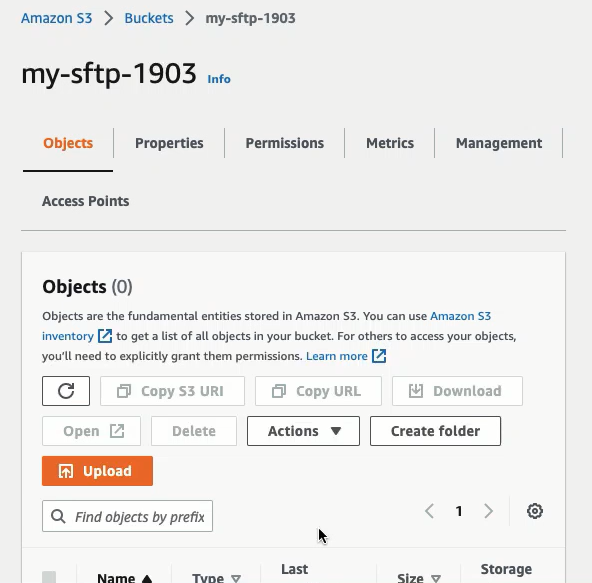
You create an S3 bucket.
The name of the bucket must be unique (view Bucket naming rules). In this lab, I use the S3 bucket named my-sftp-1903, but you should use another name for your S3 bucket.
Create an IAM role
We will create an IAM role and policy, which are needed from the SFTP Server to access the S3 Bucket. First, you need to create an IAM policy.
-
Open the IAM console.
-
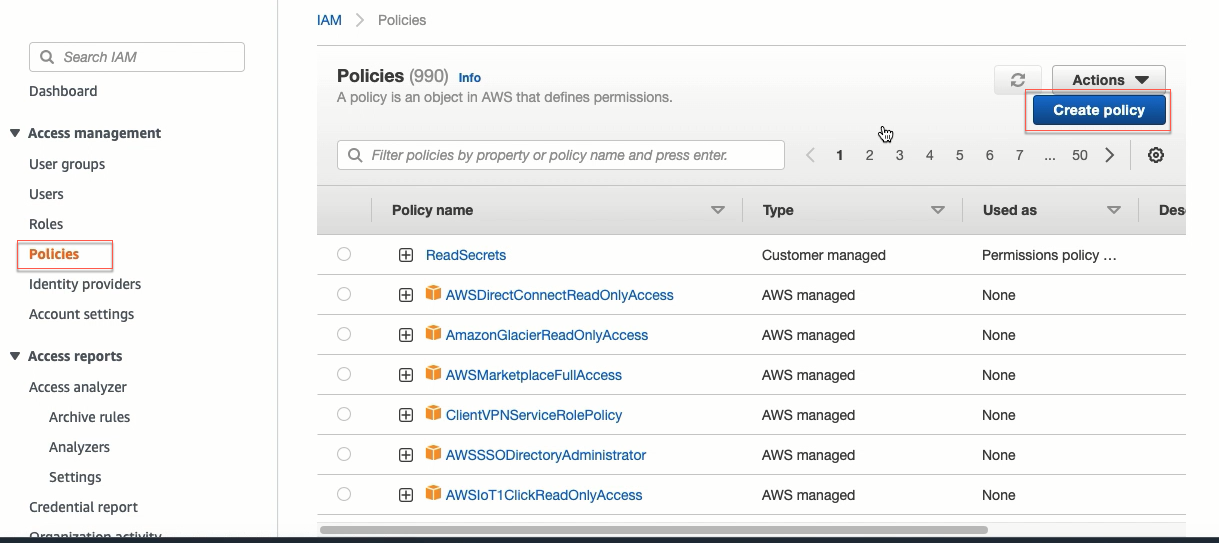
On the left panel, select Polices and then click Create policy.
-
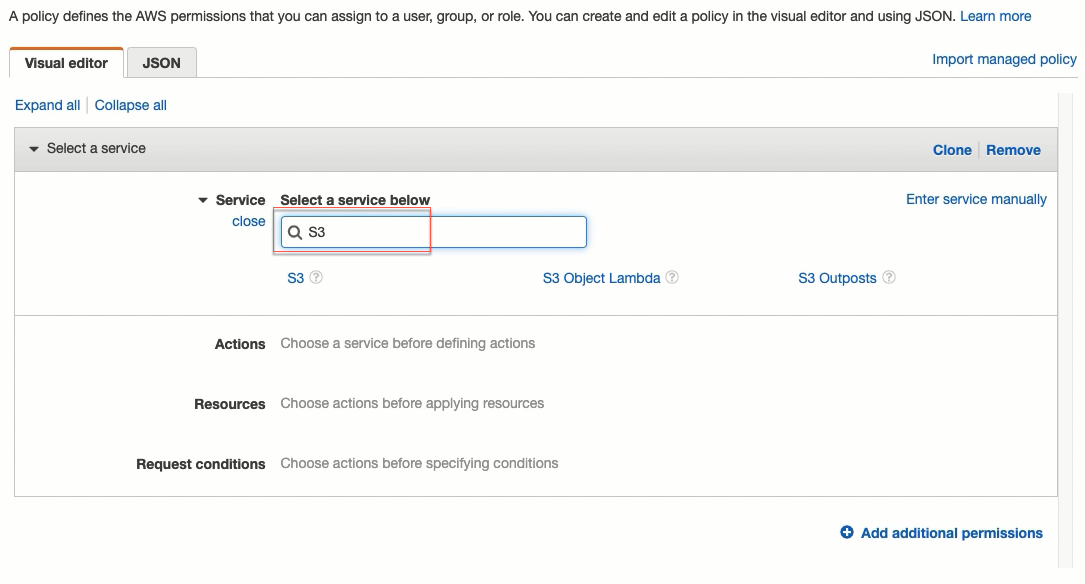
In the Visual editor tab, look for and select S3.
-
In Actions, we have to choose only option:
- List: ListBucket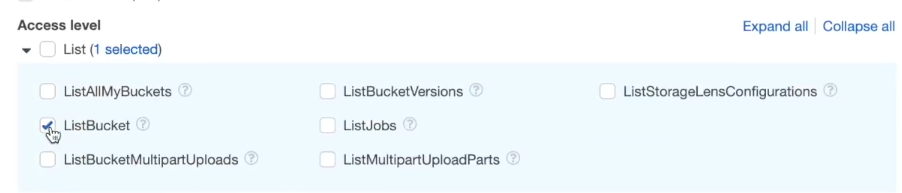 - Read: GetBucketLocation;
 -
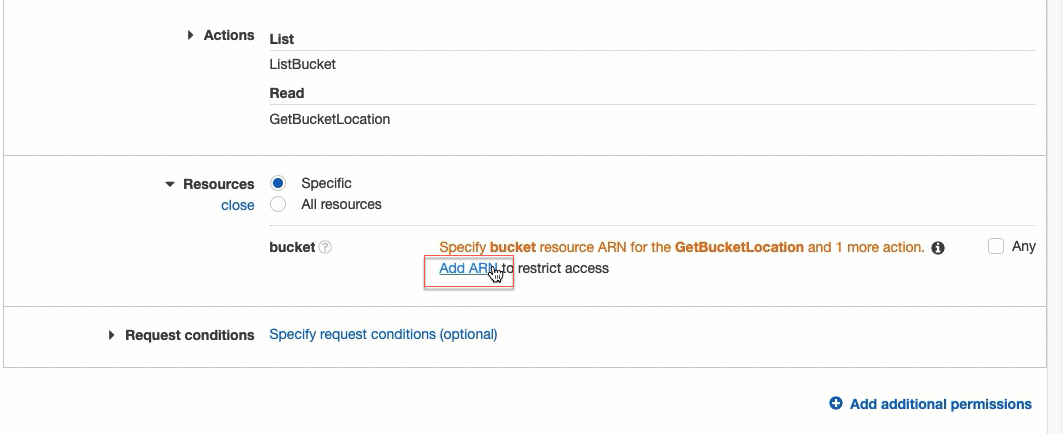
Scroll down. In Resources: we click on Specify bucket resource… and then click Add ARN.
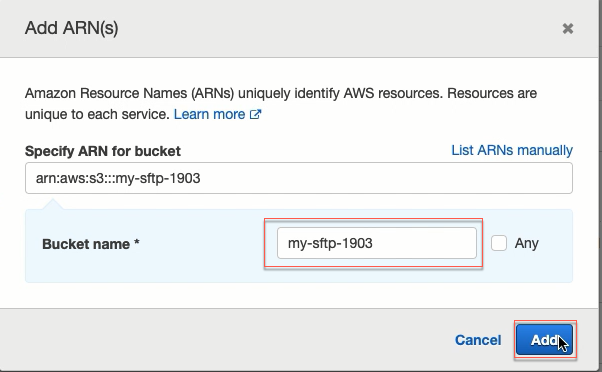
At the pop-up window, you enter your bucket name and then click on Add.
-
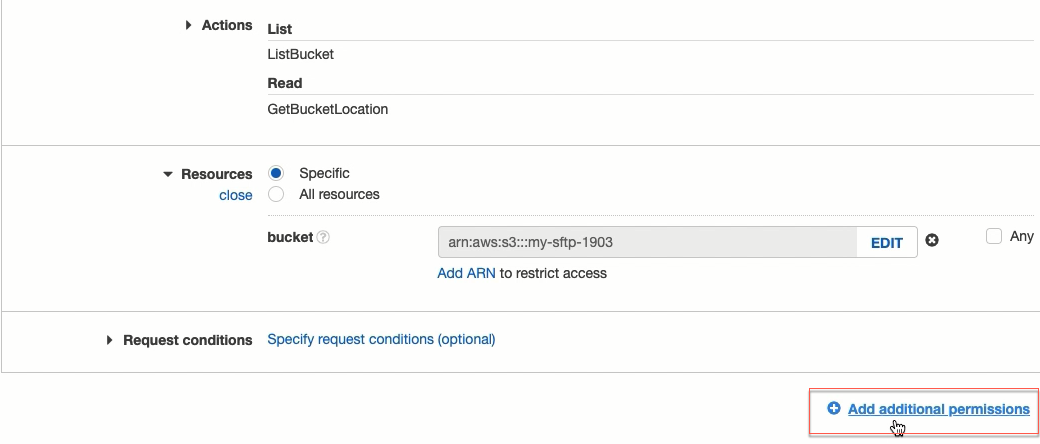
The answer will look like the image below. Click Add additional permissions:
-
Extremely similar to the previous steps:
-
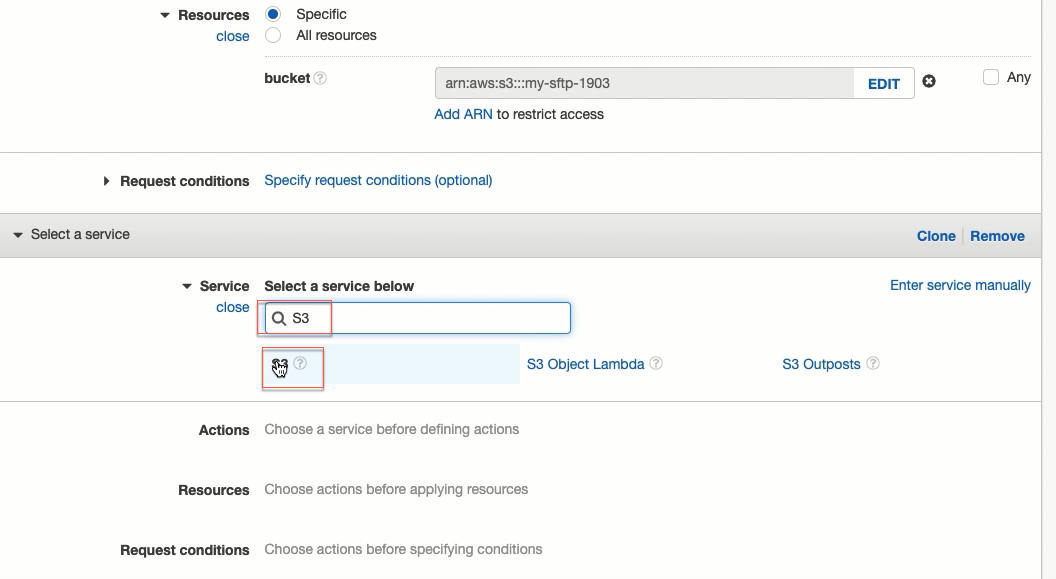
Look for and choose S3.
-
In Actions, we must choose:
- Read: GetObject; GetObjectVersion;
- Write: PutObject; DeleteObject; DeleteObjectVersion.
-
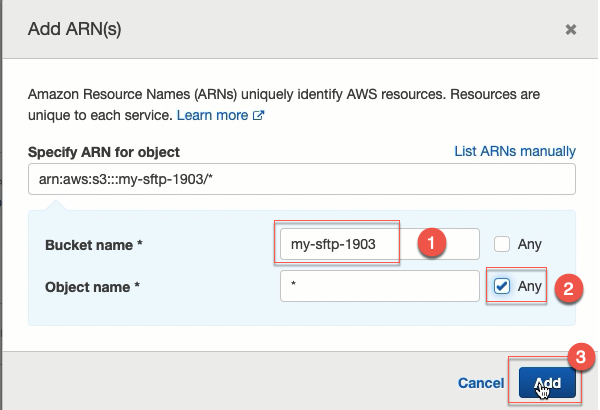
- In Resources: we expand and click on Add ARN
- At the pop-up window, you enter your bucket name, select Any and then click on Add.
-
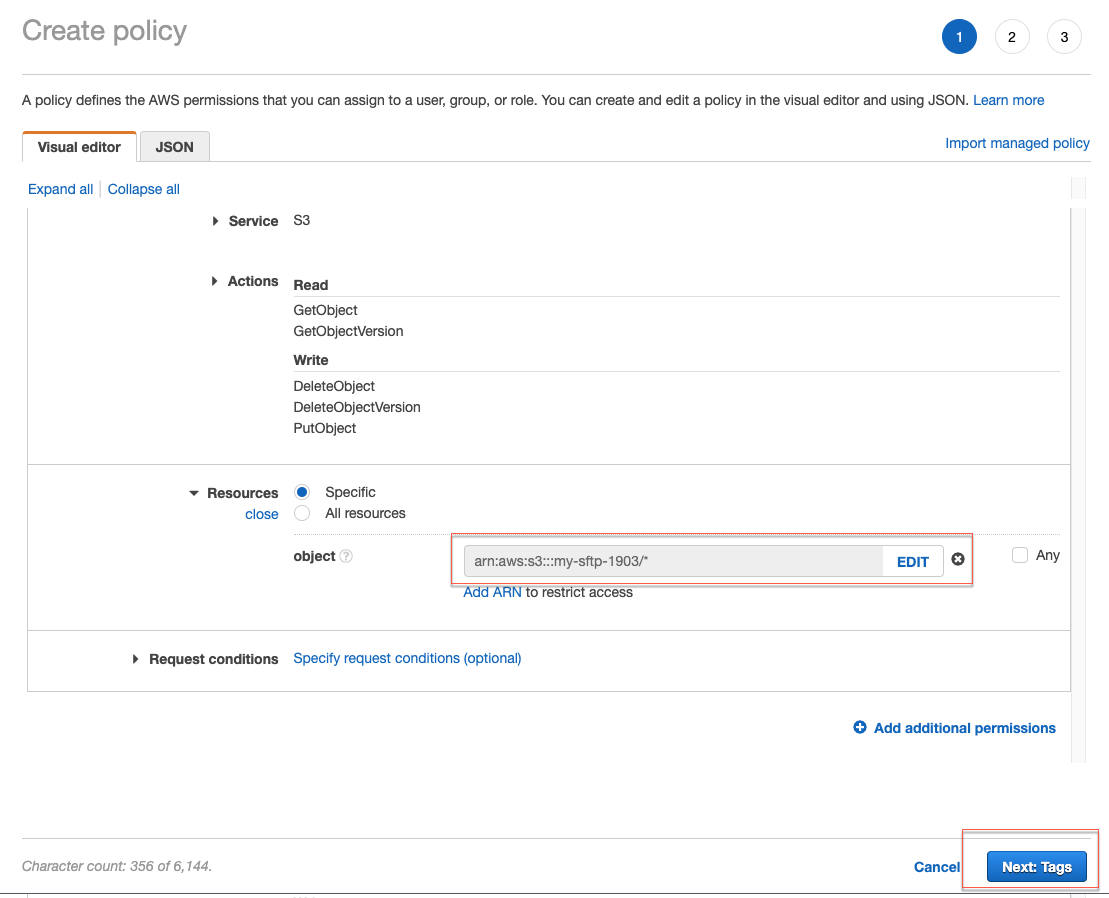
The answer will look like the image below. Click Next: Tags.
-
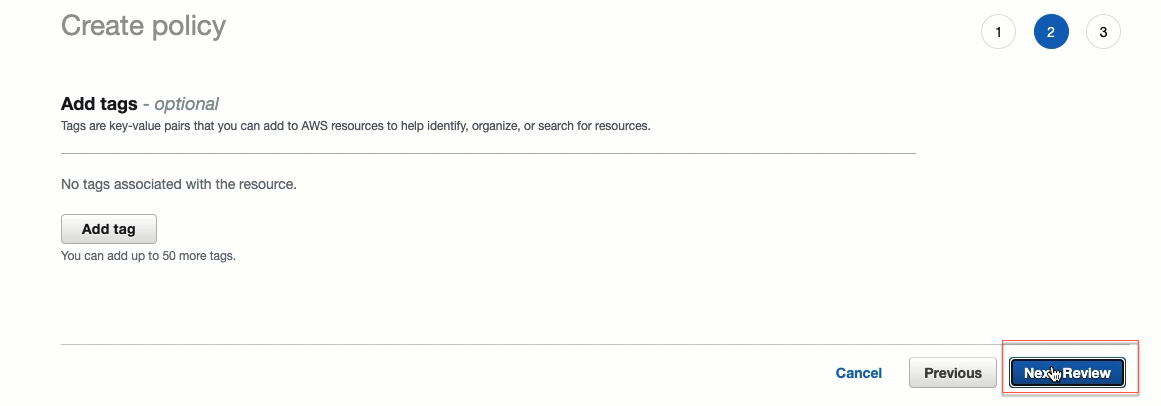
Click Next Review.
-
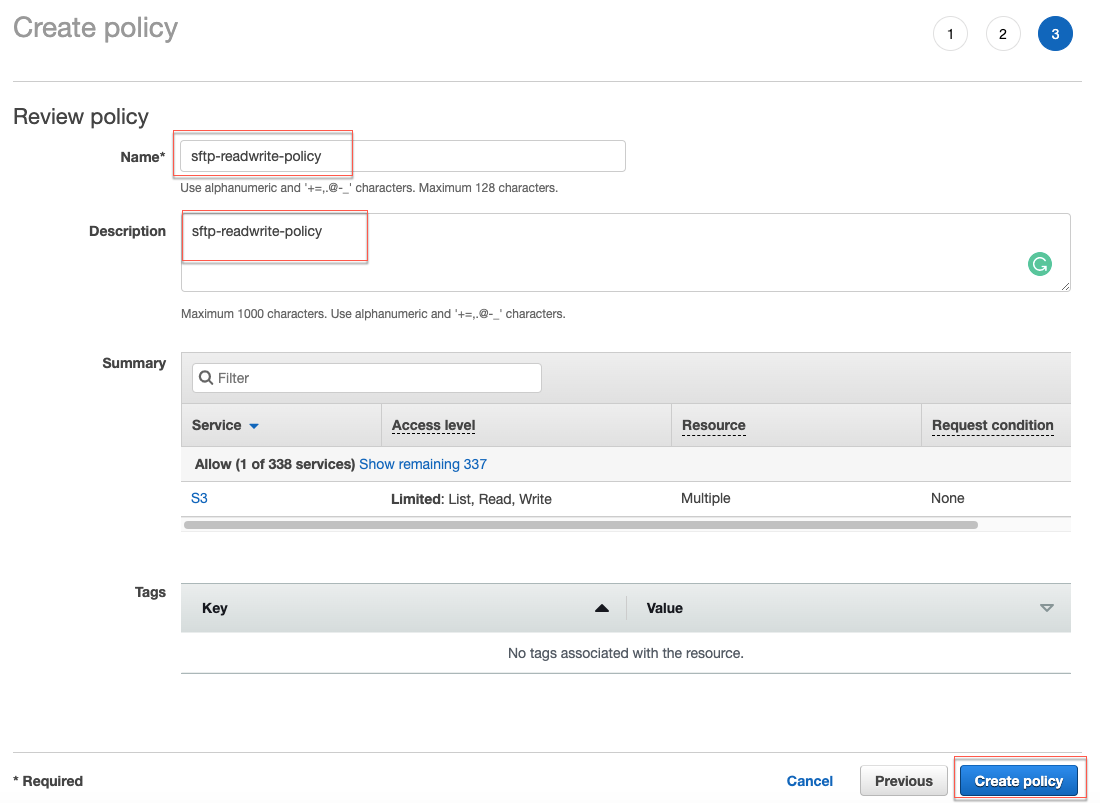
You type in the name and the description and click Create policy.
- Name: sftp-readwrite-policy
- Description: sftp-readwrite-policy
- You open the IAM console.
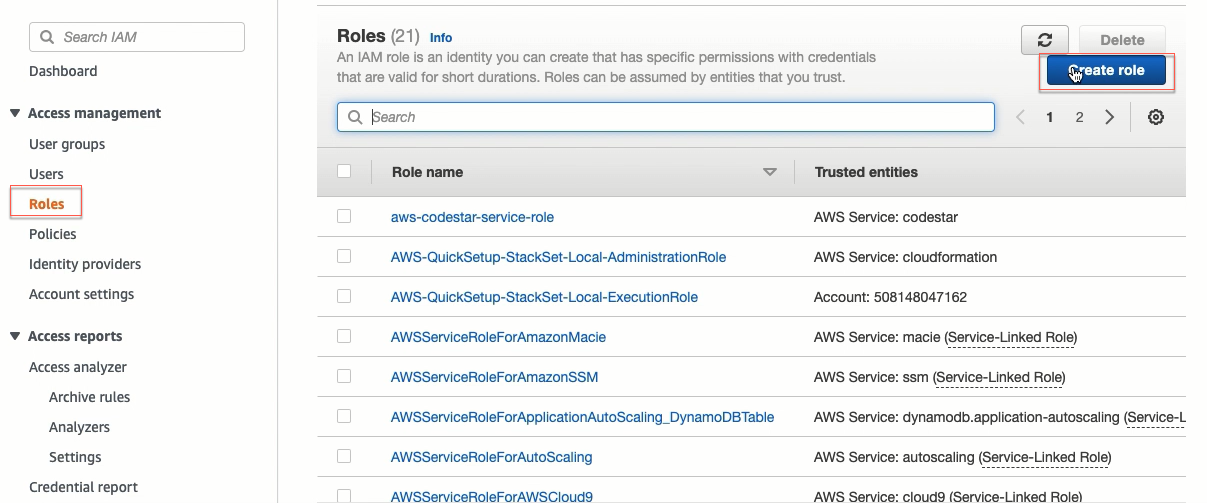
- On the left panel, select Roles and then click Create role.
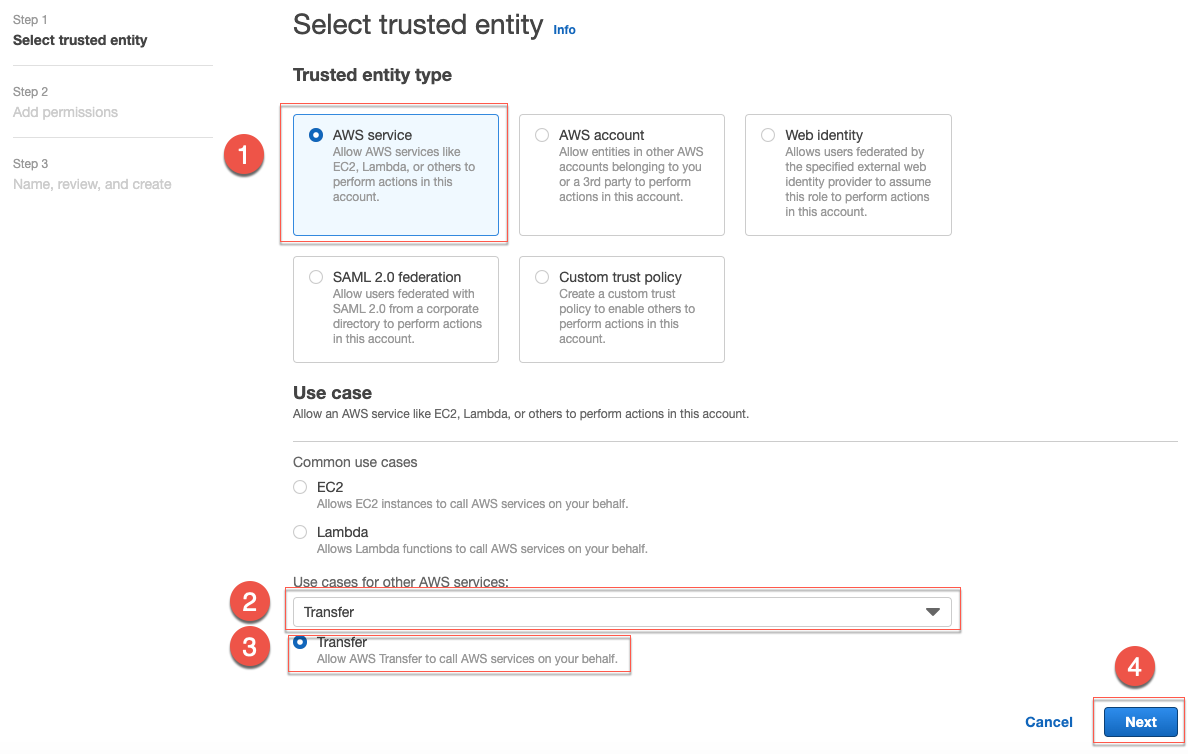
- Select AWS service. Then scroll down:
- Look for Transfer service
- Allow AWS Transfer to call AWS services on your behalf
- Click Next.
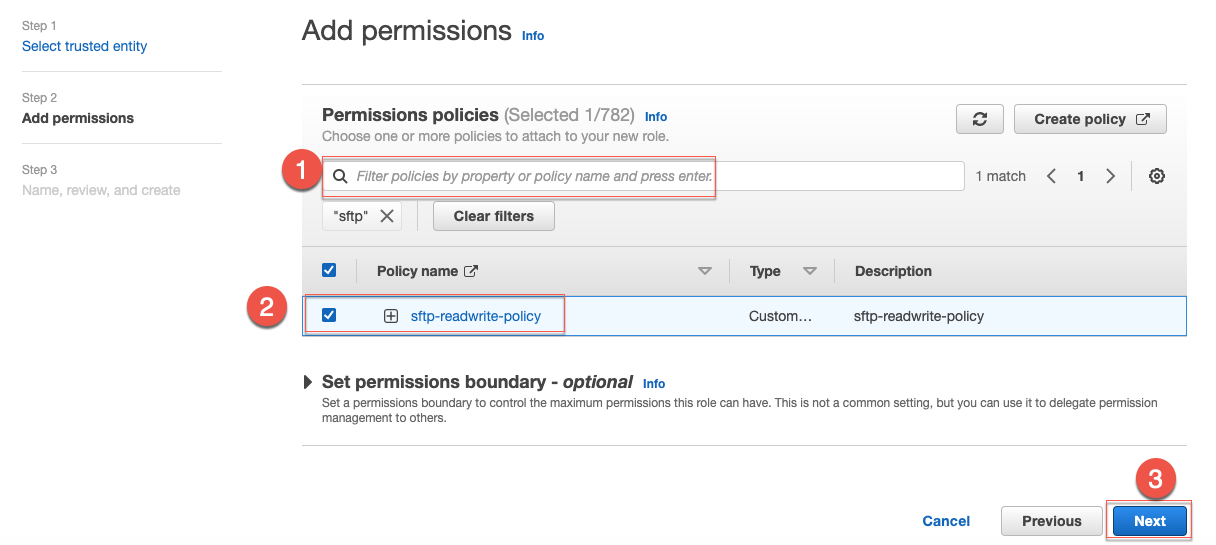
- Search for our custom policy (sftp-readwrite-policy ). Click on the policy and then click Next.
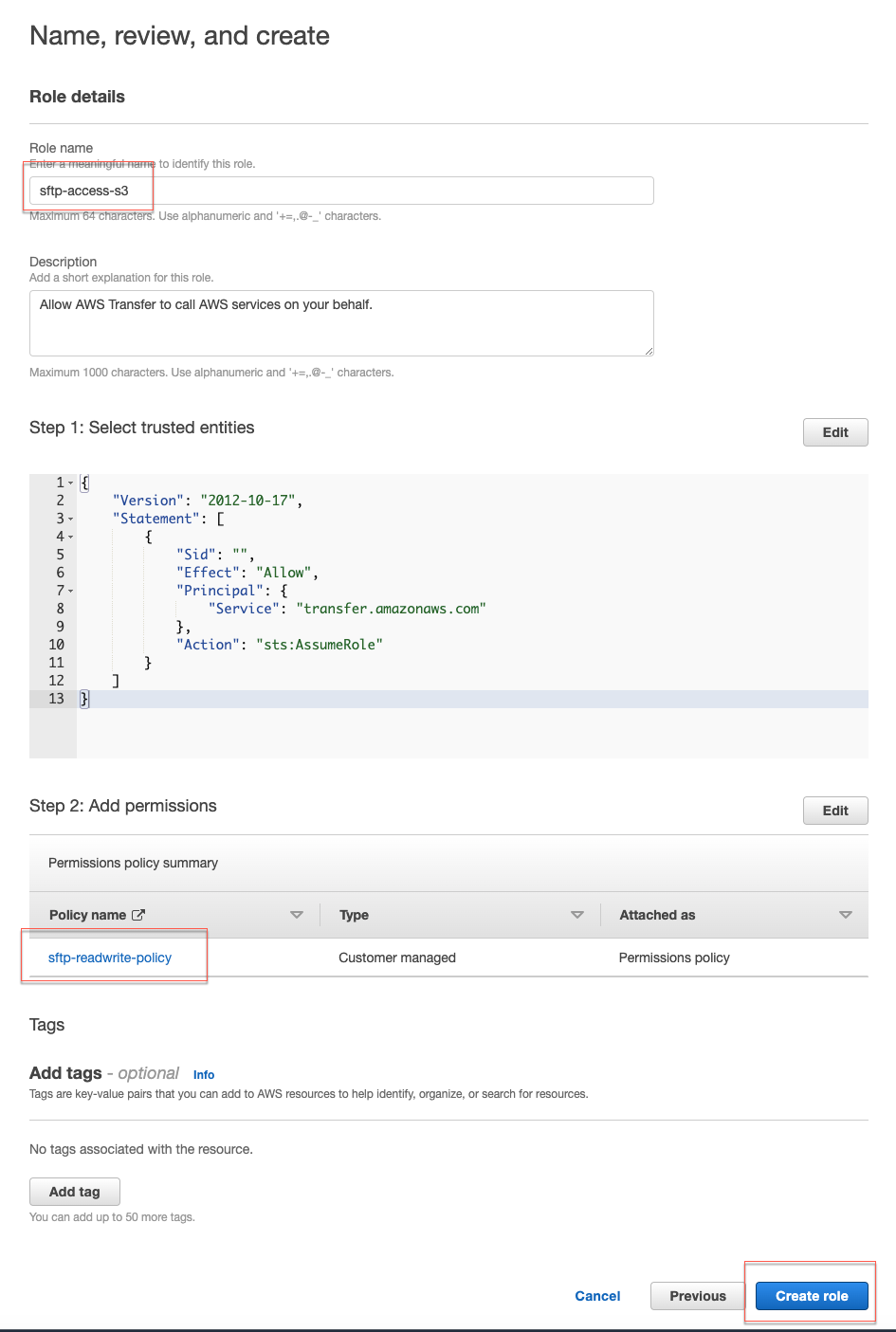
- You type in the role name (sftp-access-s3).
Review the role details. Click Create role.