Set up SFTP to upload files to S3
Create an SFTP Server with AWS Transfer Family
- Open the Amazon Transfer Family console
- Choose Create server.
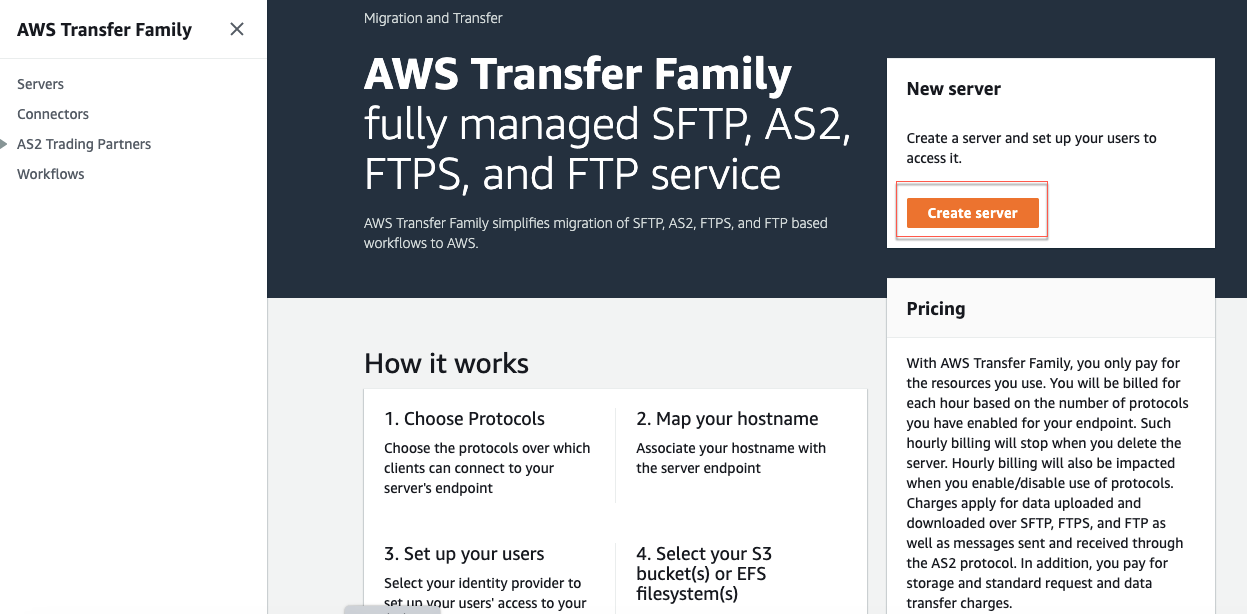
- Step 1 (Choose protocols): There are four options. In this lab, we have to choose SFTP and then click Next.
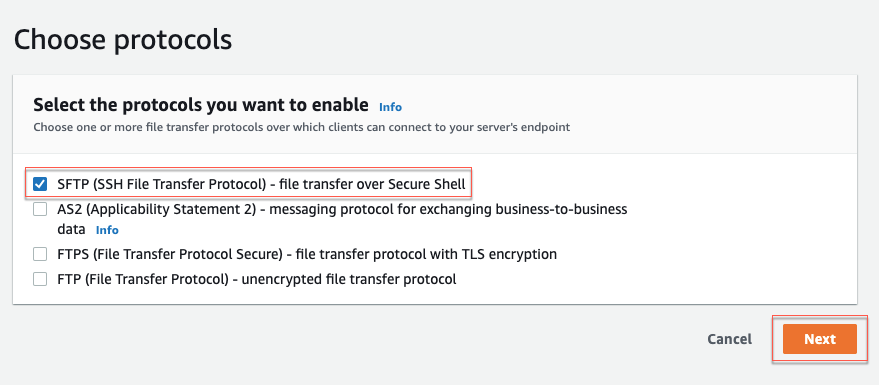
- Step 2 (Choose an identity provider): Choose Service managed and then click Next.
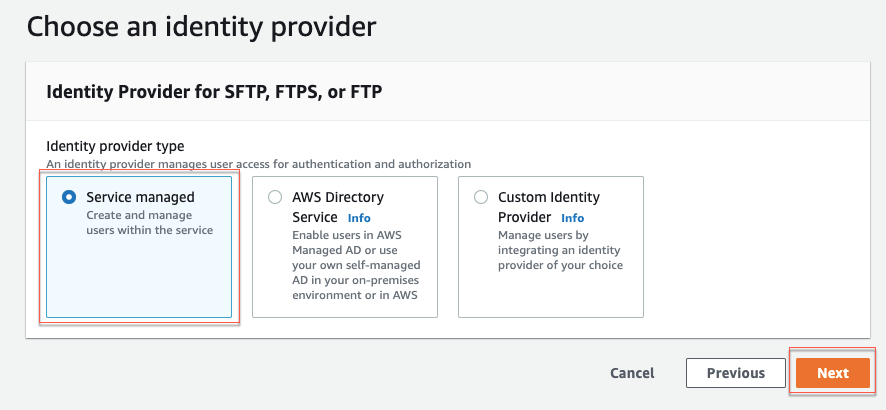
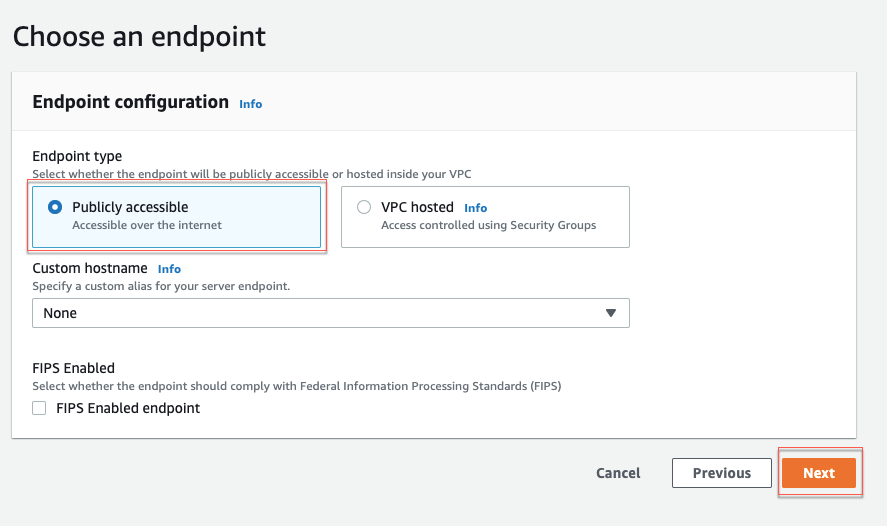
- Step 3 (Choose an endpoint): Choose Publicly accessible and then click Next.
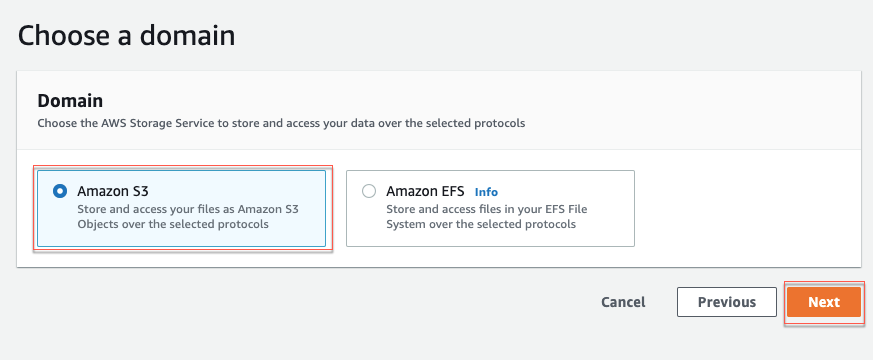
- Step 4 (Choose a domain): Choose Amazon S3 and then click Next.
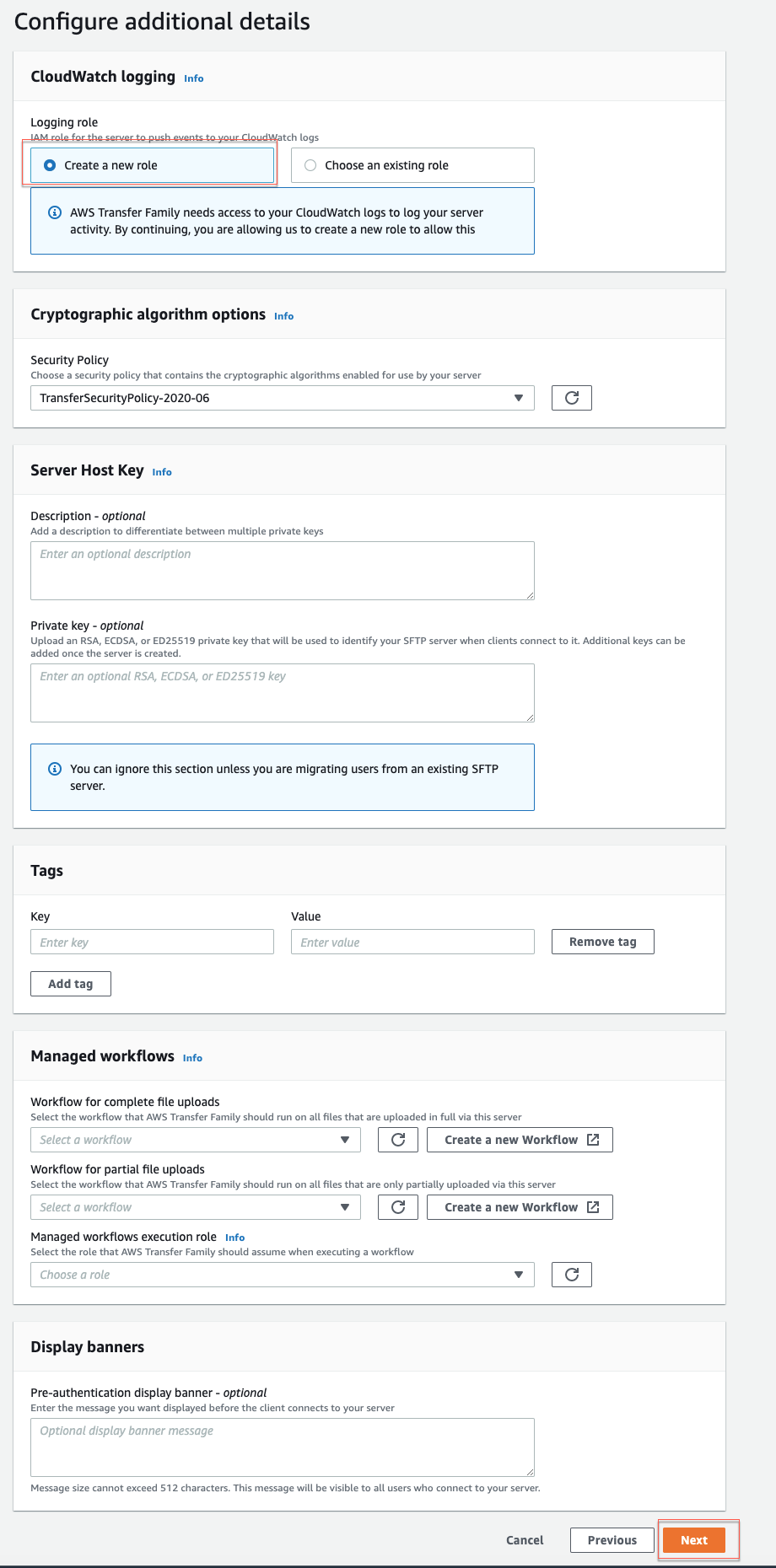
- Step 5 (Configure additional details): Choose Create a new role and then click Next.
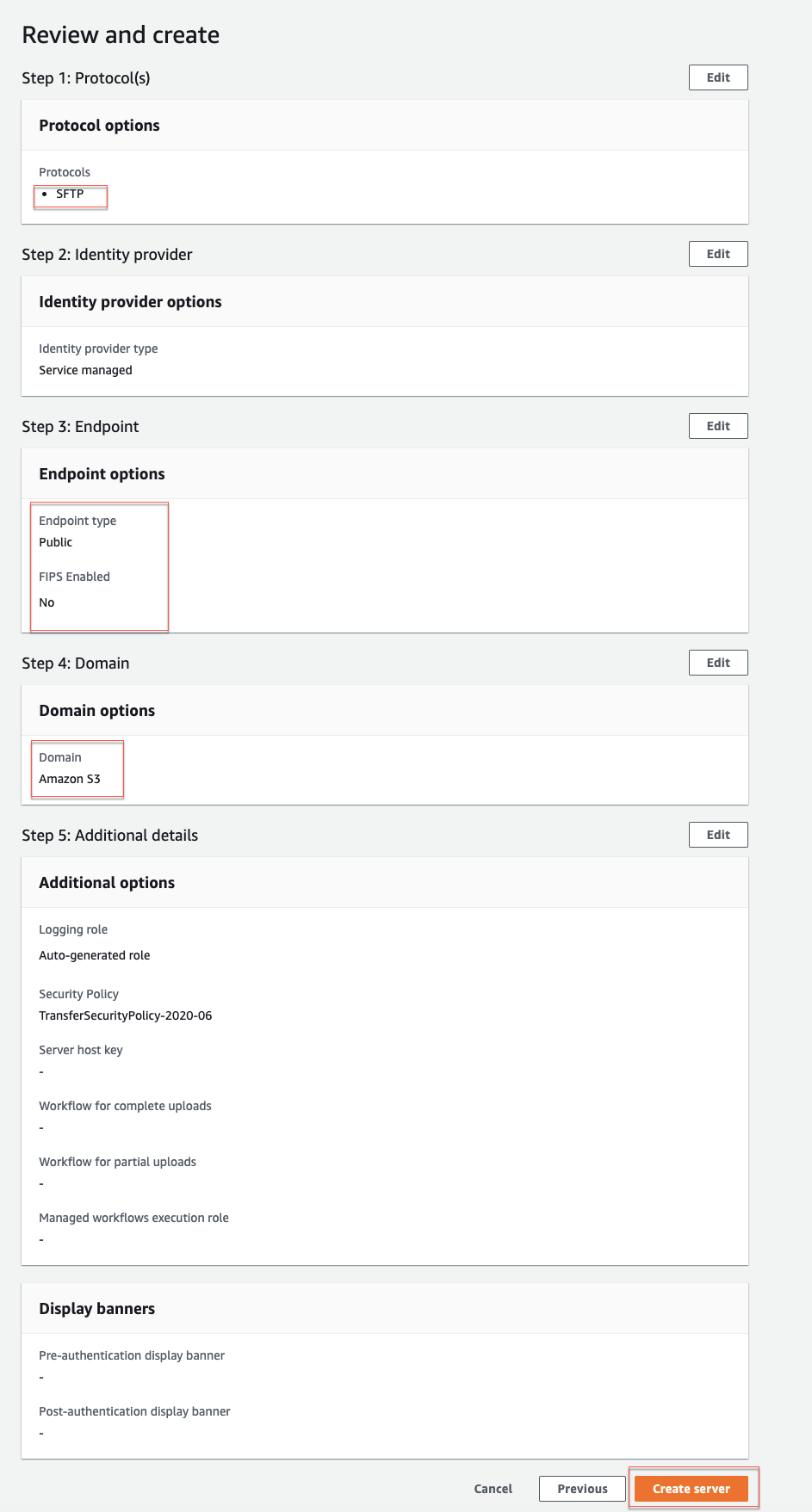
- Step 6 (Review and create): We review the SFTP Server details and then click Create server
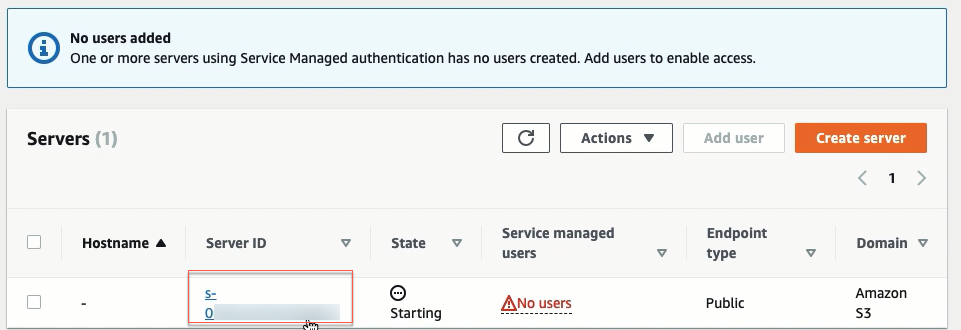
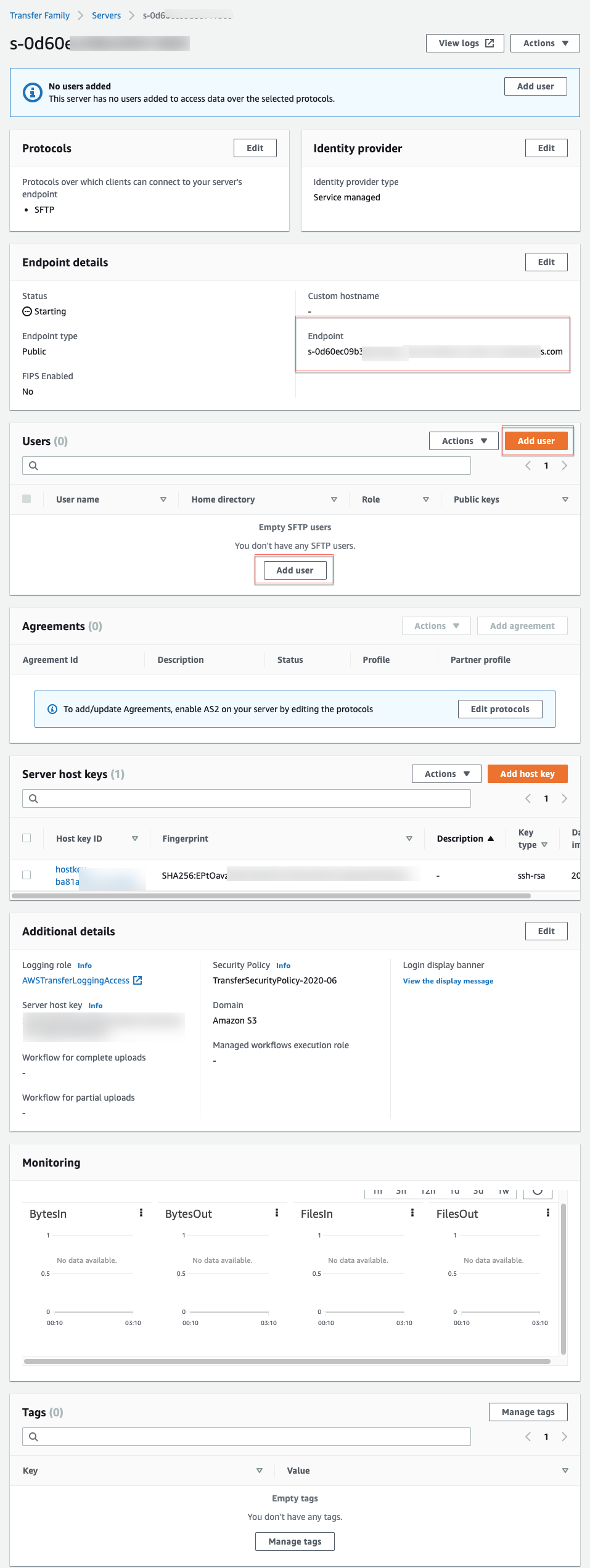
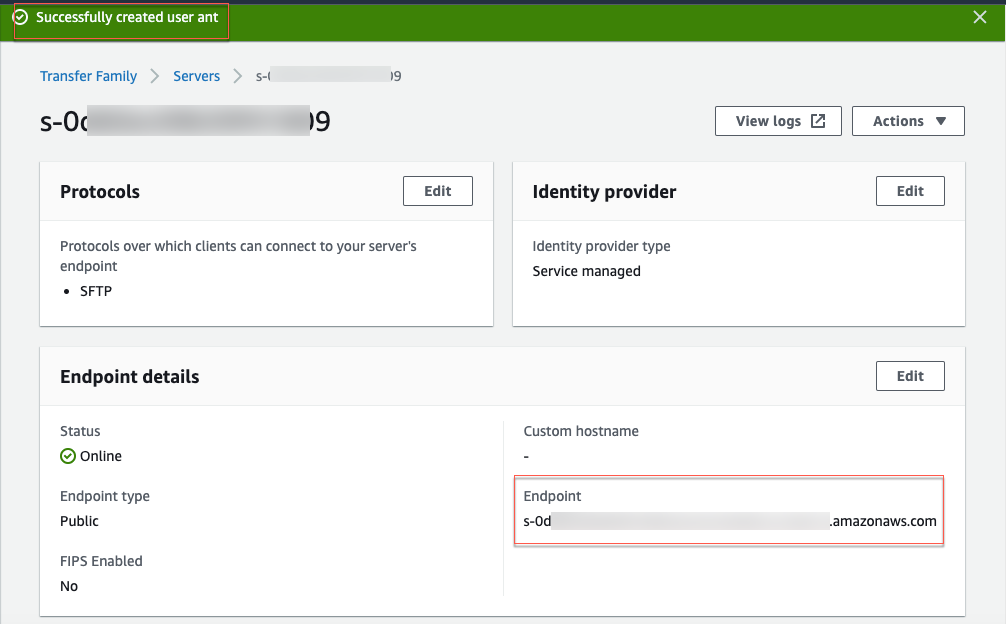
- The server should be ready in a few minutes. This state is Starting as you can see. But you can click the SFTP Server and see what the server looks like (save the Endpoint URL for next steps).
So far, we have only the SFTP server running with the S3 bucket as the source.
Add an SFTP user
-
Click Add user.
-
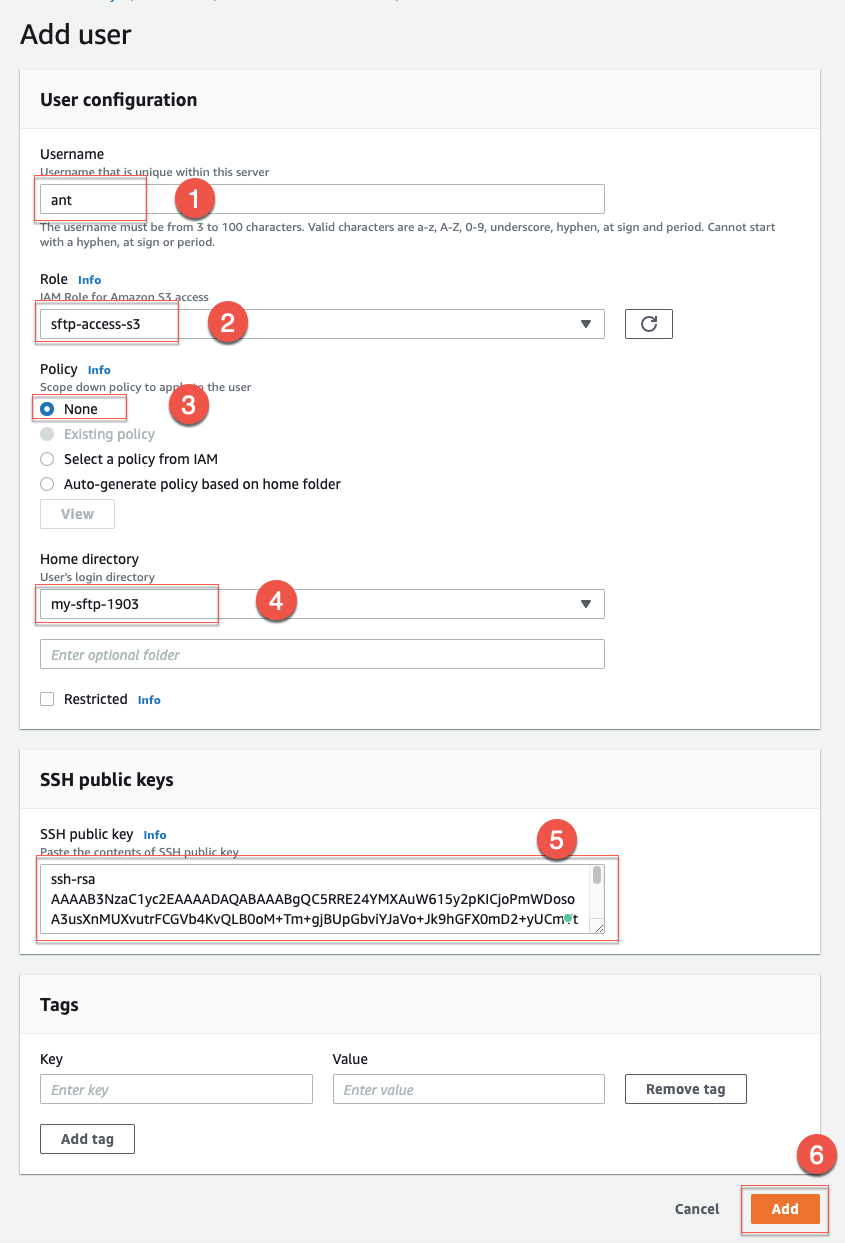
You type in the Username, choose the IAM role, your S3 bucket, paste SSH public keys. Then click Add.
- Username: ant
- Role: sftp-access-s3 (the user to be able to read from S3)
- Policy: None
- Home directory:
- field 1: choose Your S3 bucket
- field 2: empty
- Restricted: don’t select.
- SSH public keys: read the below guide.
Create SSH keys
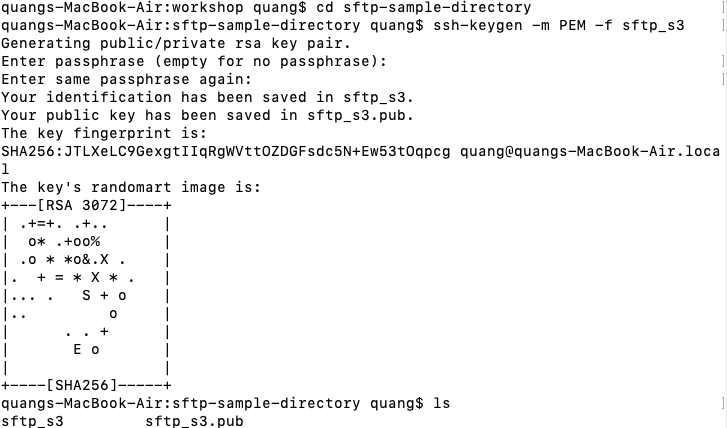
- With this command, we generate an SSH key pair (sftp_s3 (private key) and sftp_s3.pub (public key)):
ssh-keygen -m PEM -f sftp_s3
 Using the command
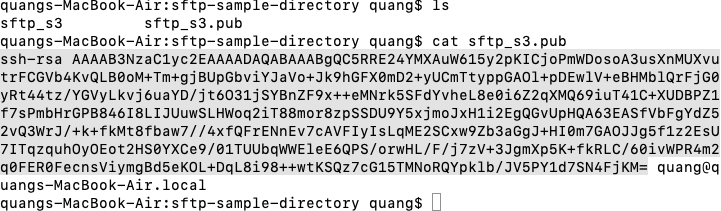
 cat sftp_s3.pub to display the content of the sftp_s3.pub key. We copy it and paste it into the SSH public key section.
- We successfully created an SFTP server with an SFTP user.
Using FileZilla with the SFTP Server
-
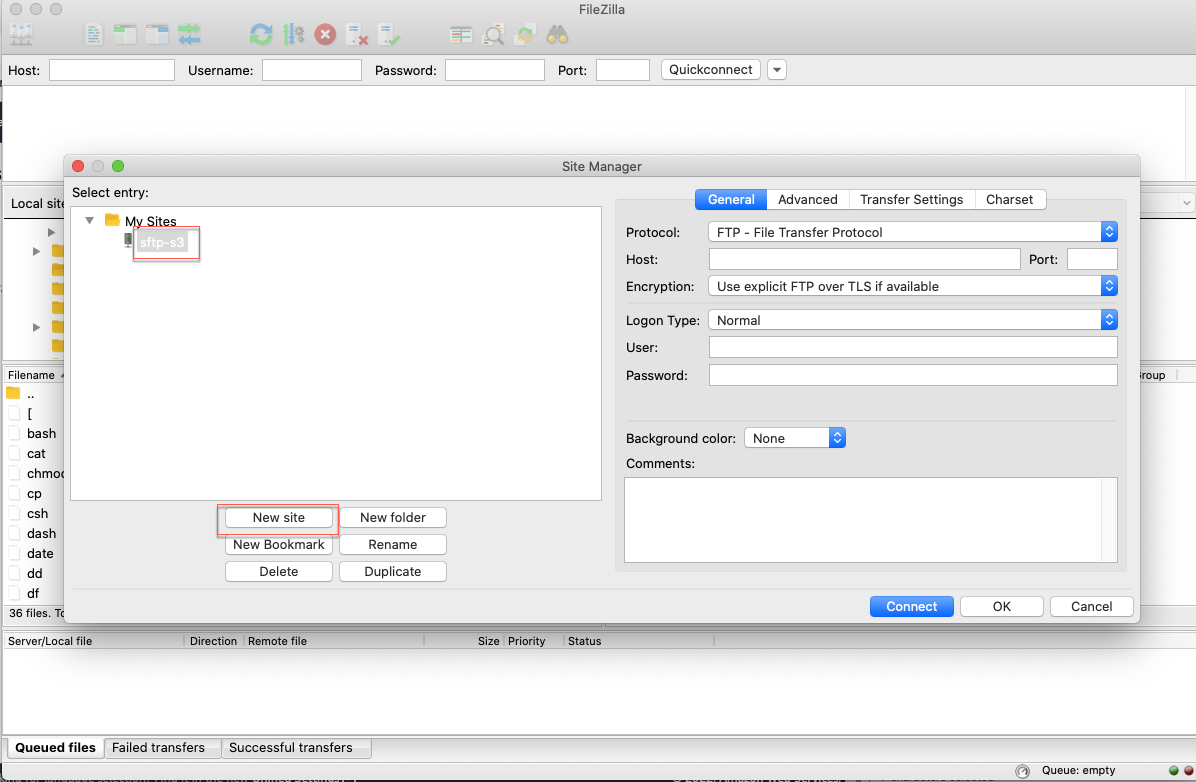
Open FileZilla:
- From the top menu, select File
- Select Site Manager
- Click New site
- Input name sftp-s3
-
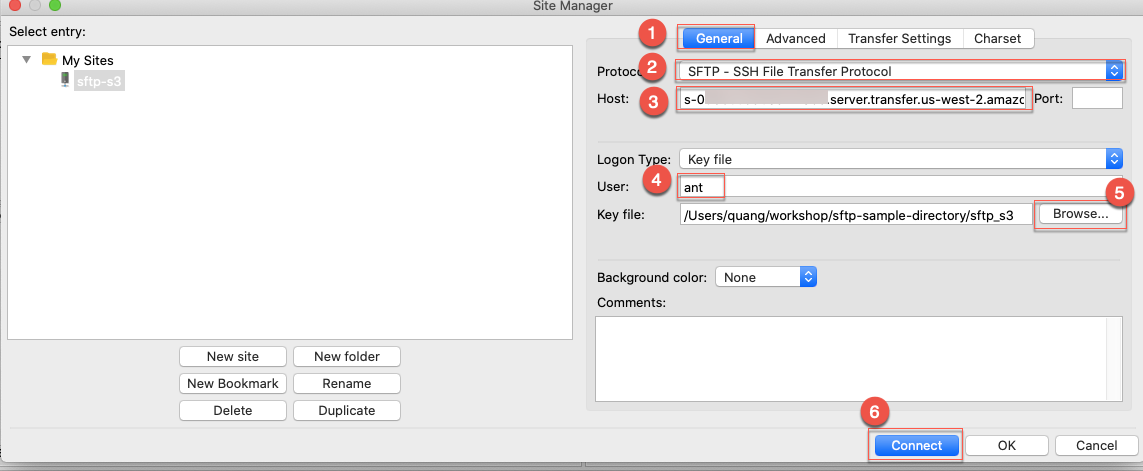
Select the General tab:
- Protocol: SFTP
- Host: Endpoint URL
- Logon Type: Key file
- User: ant
- Key file: You click Browser and then select the path to the sftp_s3 key on your computer.
- Click Connect.
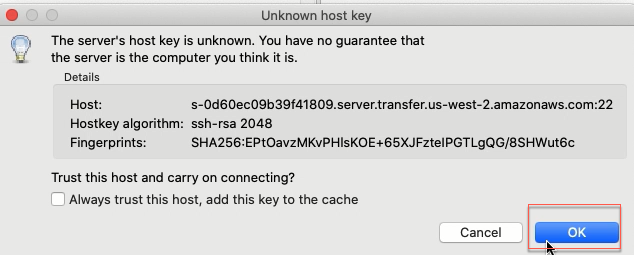
With the window pop-up, select Save passwords, then click OK and Connect.
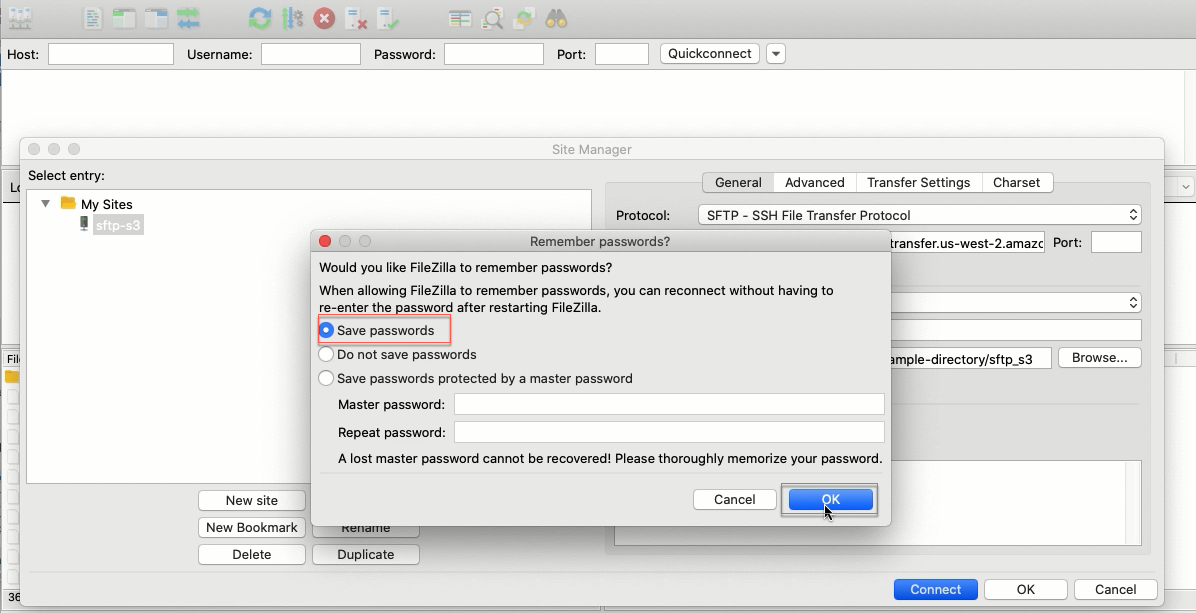
Click OK.
-
We successful connect to the SFTP Server with FileZilla
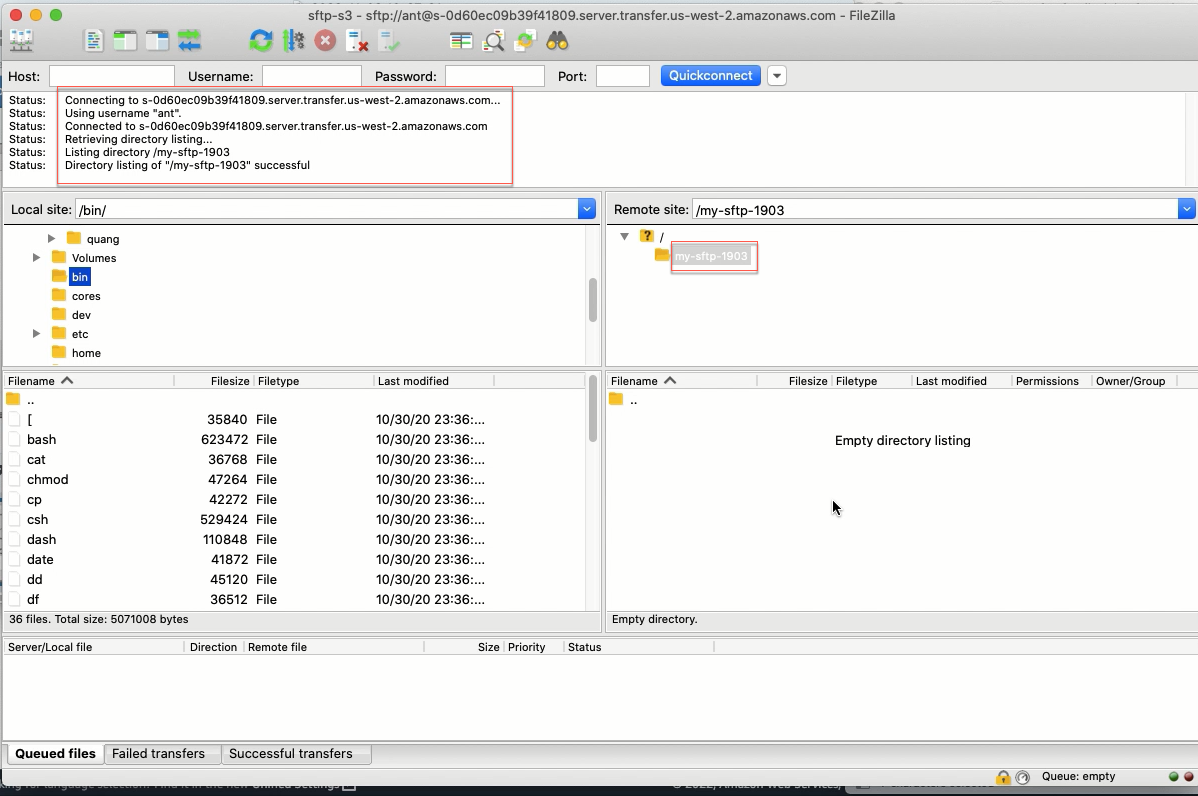
-
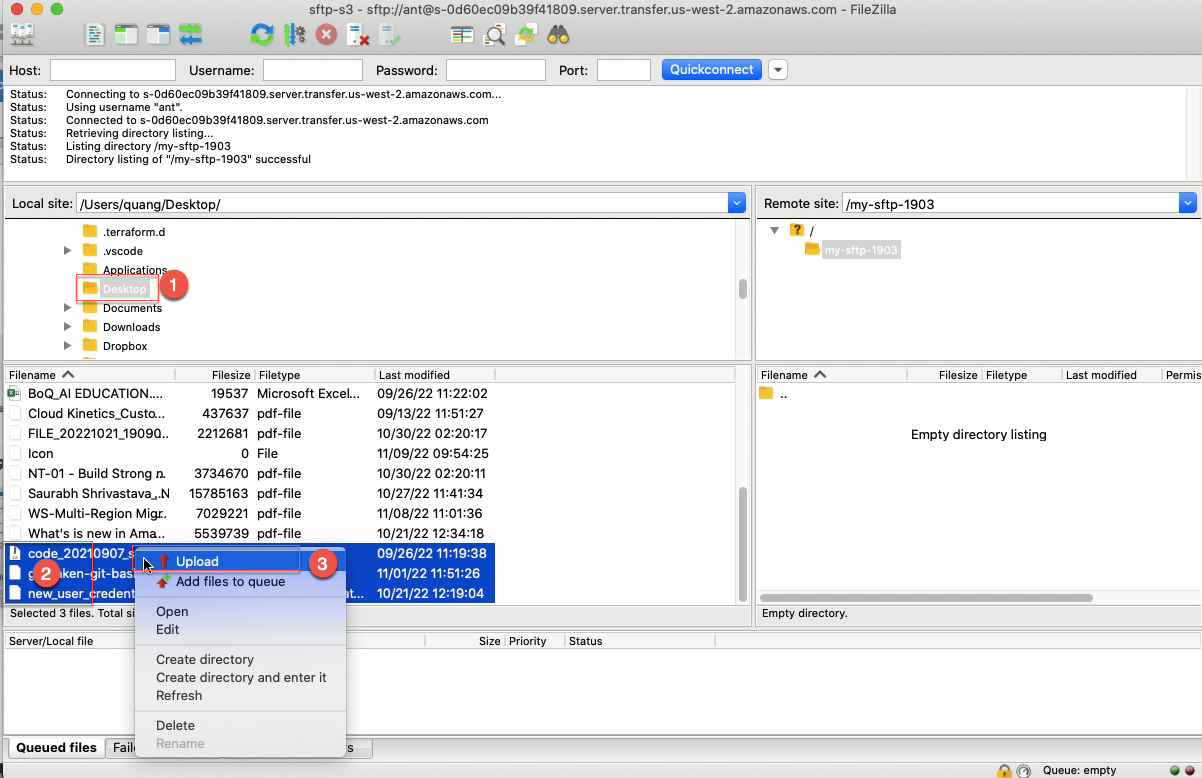
Upload files from your computer to the SFTP Server.
You navigate to the folder containing the files, select them, right-click your mouse, and select Upload.
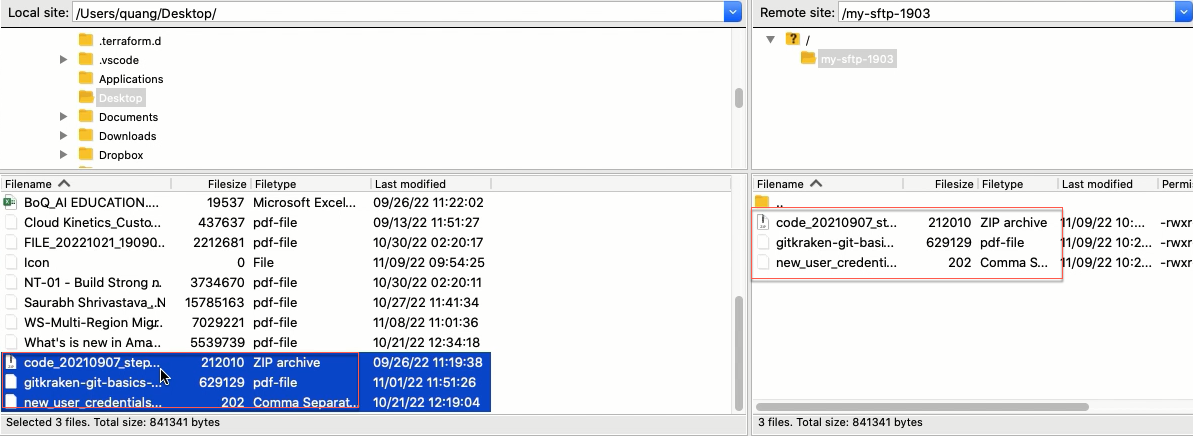
 17. Files were upload.
 18. Open the S3 bucket, you will see the files that we have just uploaded.
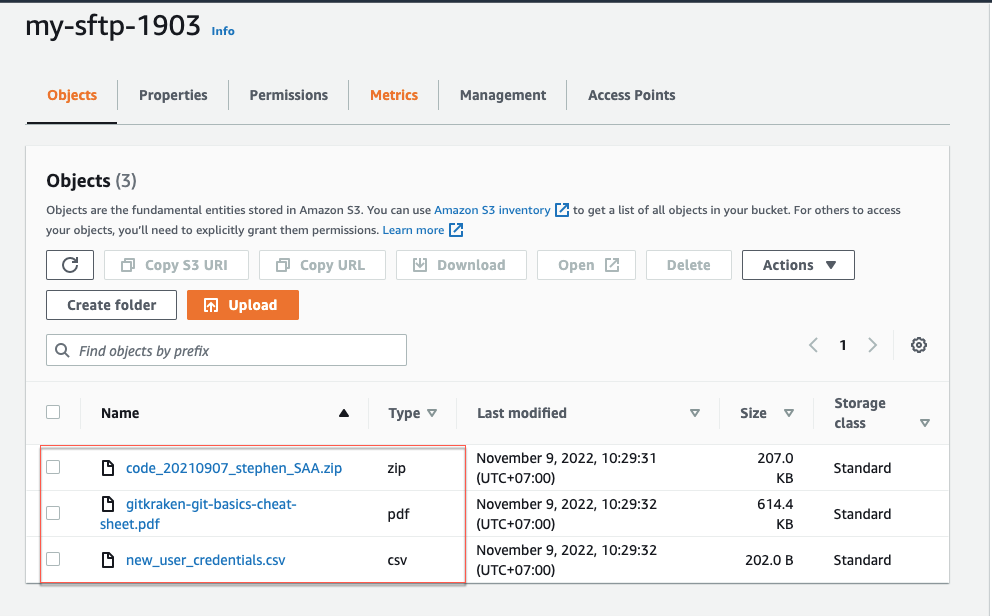
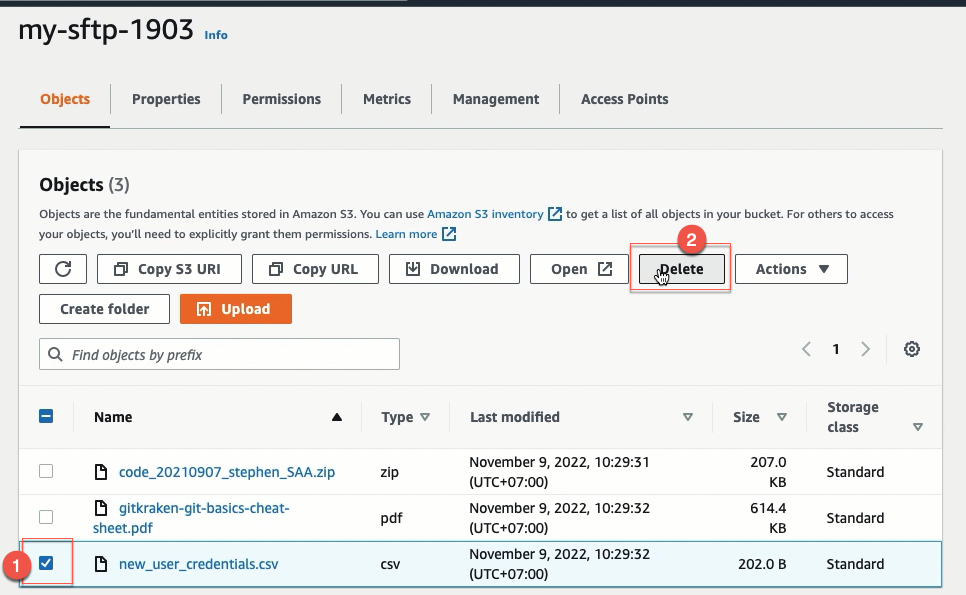
- Delete a file from your S3 bucket.
You select a file and then press the Delete button.
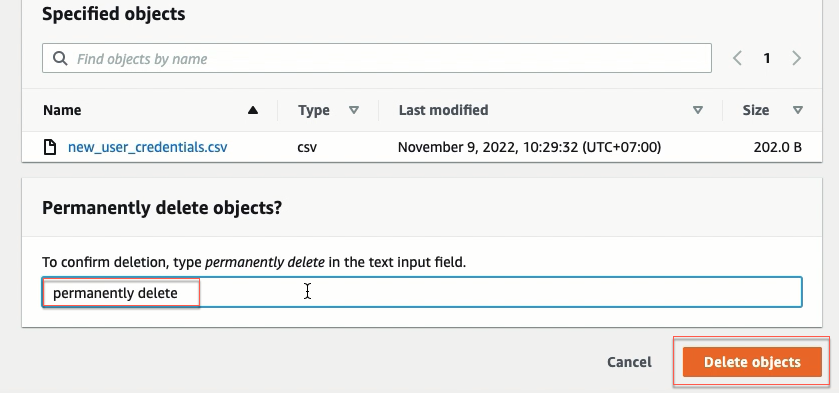
 Type permanently delete and then click Delete Object.
-
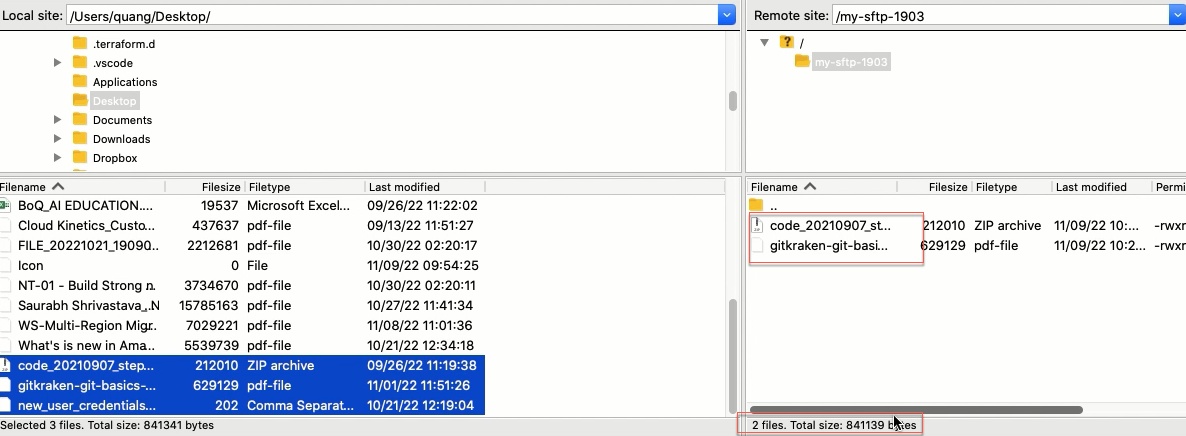
Right-click your mouse in the right zone and select Refresh.
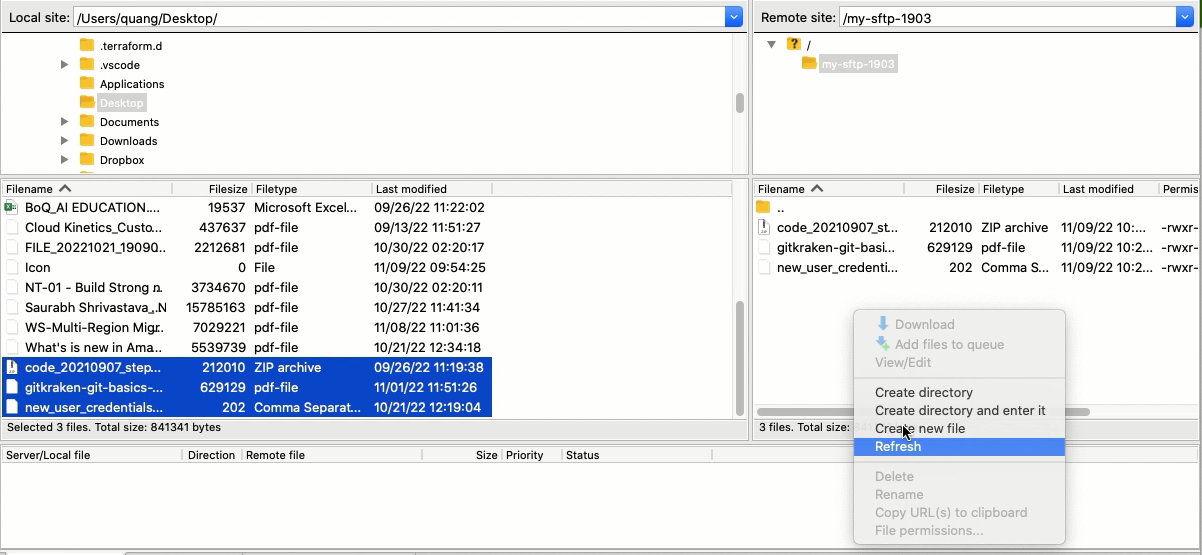 There is only two files viewable.
-
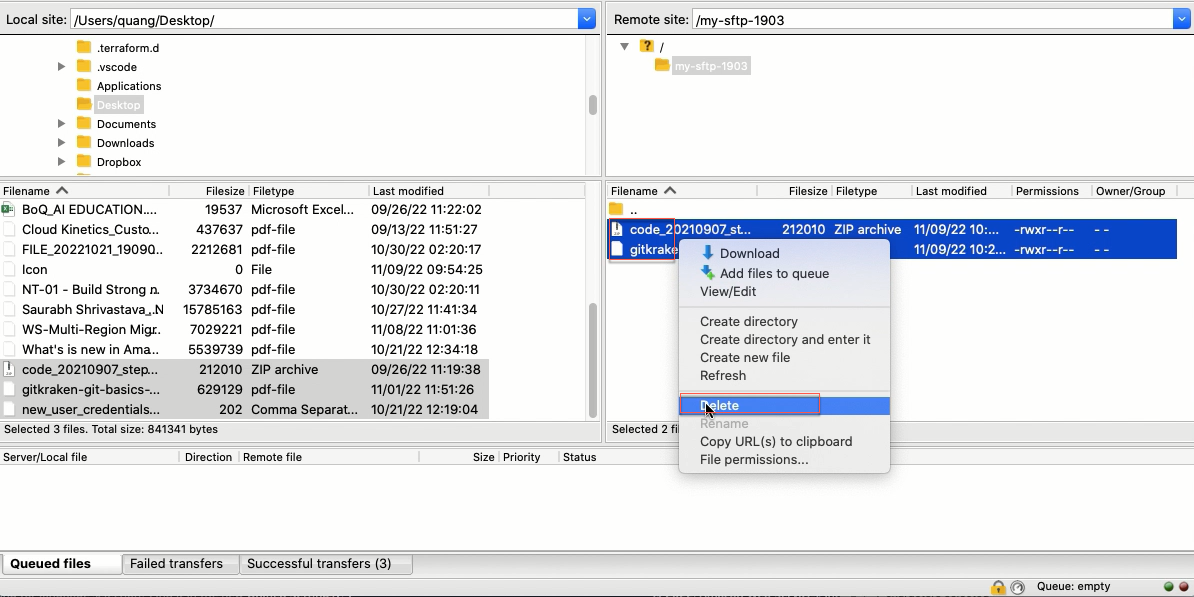
Delete files from the SFTP Server with FileZilla. You select two files, right-click, and then select Delete.
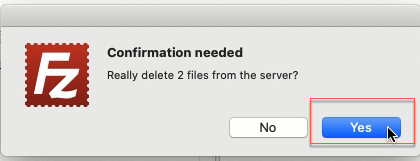
 Click Yes.
Your S3 bucket will be empty.